
Does your security perimeter end where an employee’s personal smartphone begins? Unmanaged devices represent a massive visibility gap that leaves your corporate resources vulnerable. Implementing a robust BYOD policy ensures that every access request is authenticated, authorised, and verified.
In a Zero Trust environment, identity is your only true firewall, and Multi-Factor Authentication (MFA) is the lock that makes it hold. Without strict policies, personal devices become the weakest link in your security chain.
The Risks of Unmanaged Personal Devices
When employees use personal devices to access corporate resources like Microsoft Teams or cloud consoles, you lose direct control over the hardware. Unlike corporate-owned devices, personal phones are not subject to your organisational security controls, creating several critical vulnerabilities:
- Data Proliferation: Sensitive company data becomes mixed with personal photos, unverified applications, and social media tools, making data loss prevention nearly impossible.
- Lack of Visibility: IT teams have no insight into whether the device is jailbroken, running an outdated operating system, or infected with mobile malware.
- The Offboarding Gap: When an employee leaves the company, MFA secrets stored on their personal phone continue to generate valid codes indefinitely unless the entire MFA enrolment for that account is reset.
Enforcing MFA via Microsoft Entra ID
For organisations operating in the Microsoft ecosystem, enforcing MFA for Teams and other productivity resources is managed through Microsoft Entra ID. Conditional Access serves as the engine for these policies, allowing you to create granular rules based on the state and posture of the device.
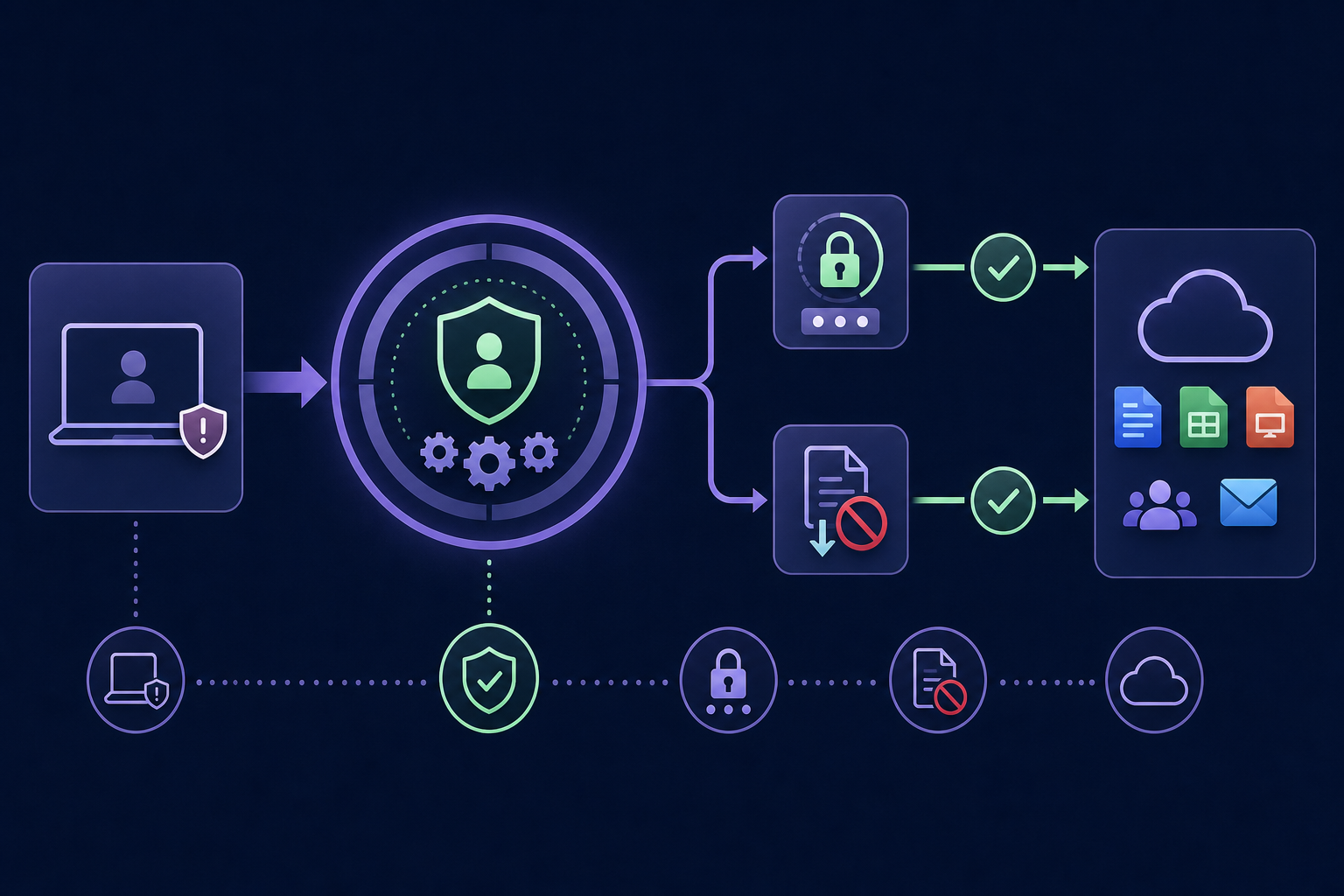
To secure unmanaged devices effectively, you should configure a Conditional Access policy that follows these steps:
- Identify the Device State: Use device filters to target devices that are "unmanaged" or marked as "non-compliant."
- Require MFA: Force a second factor whenever a user attempts to sign in from a device not joined to your domain or managed via MDM.
- Apply Session Controls: For unmanaged devices, restrict the ability to download, sync, or print files to reduce authentication risk and prevent data from leaving your controlled environment.
Microsoft research indicates that enforcing MFA can reduce the risk of account compromise by over 99.2%, making it the most effective single control you can implement for unmanaged hardware.
Building a Robust BYOD Security Policy
A technical policy is only effective if it is backed by a clear, documented framework. Your BYOD security strategy should align with an IT team security checklist that includes both technical requirements and legal protections.
Privacy and Data Segregation
You must clearly define what the IT team can and cannot monitor on a personal device. It is best practice to separate organisational and personal information to protect employee privacy while ensuring corporate data remains encrypted. This segregation prevents personal activities from impacting the security of corporate applications.
Acceptable Use and Compliance
Your policy should define which applications are permitted for work use and ensure all sensitive data at rest is encrypted. For industries governed by MFA compliance standards like SOC 2 or PCI DSS v4.0, you must maintain immutable audit logs of every access event, regardless of which device is used.
Incident Response and Offboarding
The policy must include written procedures for remote wiping corporate data if a device is lost or stolen. Furthermore, you need a formal process for revoking access rights the moment an employee leaves. Automated access revocation is essential for maintaining security and satisfying auditors.
Why Personal Authenticator Apps Fail the Team
While enforcing MFA on BYOD devices is a necessary step, it often introduces a new vulnerability: the single point of failure. When a technician’s personal phone holds the only MFA secret for a critical administrative account, your entire team is at risk.
If that individual is unavailable, on holiday, or leaves the company unexpectedly, the rest of the team may be locked out of critical infrastructure. Relying on personal devices for corporate authentication secrets prevents the centralised visibility and auditability that a true Zero Trust model demands.
A professional MFA management platform solves this by moving secrets off personal devices and into a centralised, secure vault.
Implementing a Centralised MFA Vault
To truly secure a BYOD environment, IT teams should use a shared OTP vault instead of relying on individual authenticator apps. Gatera provides a secure environment where secrets are decoupled from physical devices, ensuring continuity and security.
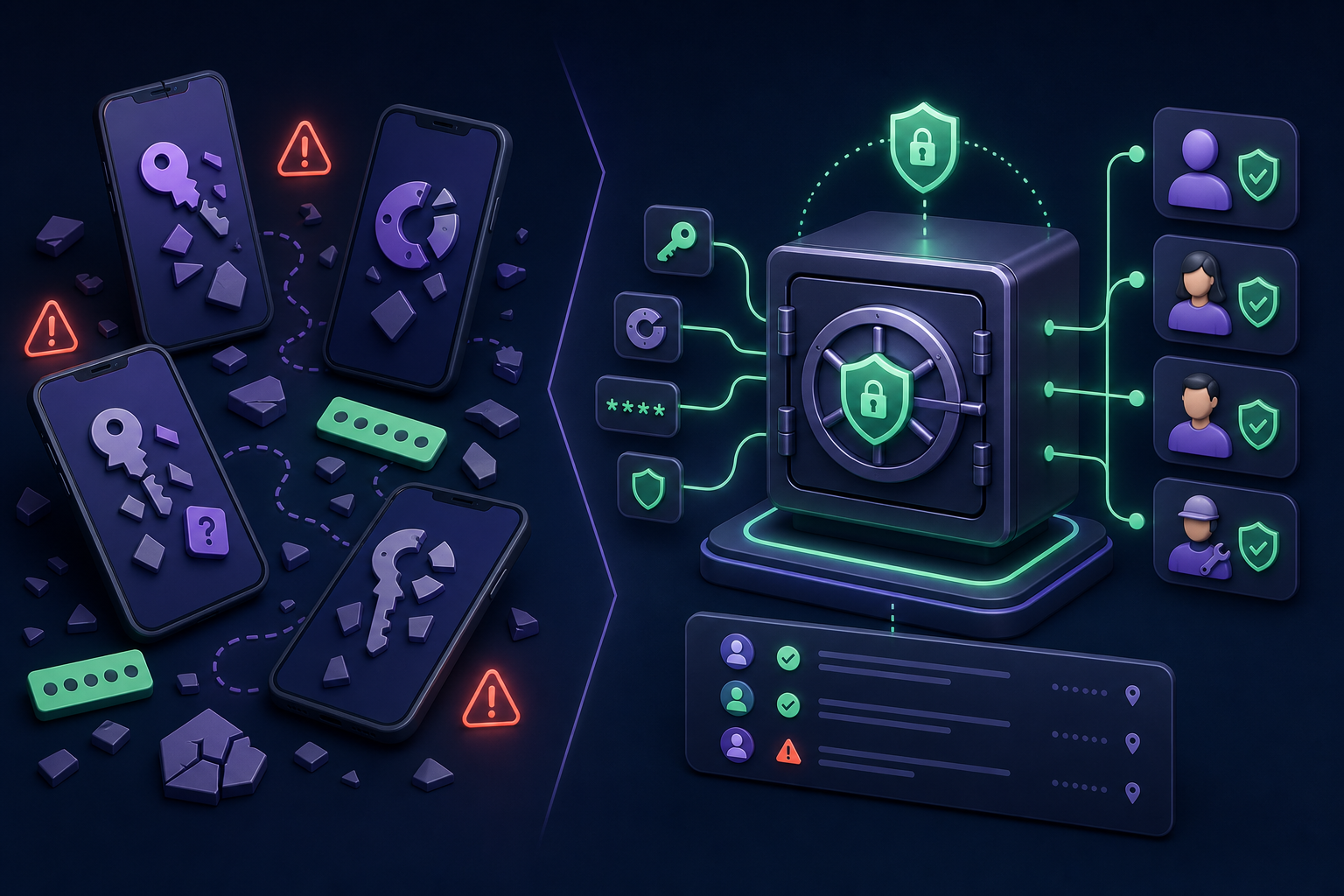
- Centralised Secrets: MFA codes live in an encrypted vault, meaning no single employee "owns" the authentication secrets for the organisation.
- Role-Based Access: You can grant or revoke access to specific codes or groups of codes instantly, ensuring the principle of least privilege.
- Audit-Ready Logging: Every time a code is accessed, Gatera logs the user identity and timestamp, fulfilling Zero Trust and compliance requirements.
- AES-256 Encryption: Every shared secret is encrypted before storage, ensuring that codes never leave the vault in plaintext.
By moving away from ad-hoc MFA management, you maintain a high security posture without infringing on employee privacy or creating operational bottlenecks.
Stop relying on personal devices for your most sensitive authentication secrets. Start your 14-day free trial with Gatera today and secure your team's MFA workflow.