
Does your organisation’s security rely on a single employee's smartphone for Microsoft Teams access? If a key admin is unavailable, your entire security posture is at risk. Here is how to configure robust MFA without creating single points of failure.
Understanding MFA for Microsoft Teams
Securing Microsoft Teams is not managed through a toggle within the Teams application. Instead, it is controlled via Microsoft Entra ID (formerly Azure AD). Because Teams is deeply integrated into the Microsoft 365 ecosystem, your authentication policies will apply across the entire suite, including Outlook, SharePoint, and OneDrive.
For IT administrators, there are three primary ways to enforce multi-factor authentication:
- Security Defaults: A straightforward setting for smaller organisations that requires all users to register for MFA using the Microsoft Authenticator app.
- Conditional Access: The Zero Trust engine for Microsoft that allows you to create granular policies, such as requiring MFA only when users are off-site or accessing Teams from unmanaged devices.
- Per-User MFA: A legacy method where you manually enable MFA for individual accounts. While still functional, Microsoft generally recommends using Conditional Access for more precise control.
Enabling MFA for Your Organisation
To begin the rollout, you must navigate to the Microsoft 365 admin centre. Locate the Users tab, select Active users, and then click on Multi-factor authentication. From this dashboard, you can select specific users or perform a bulk update to require a secondary form of verification.
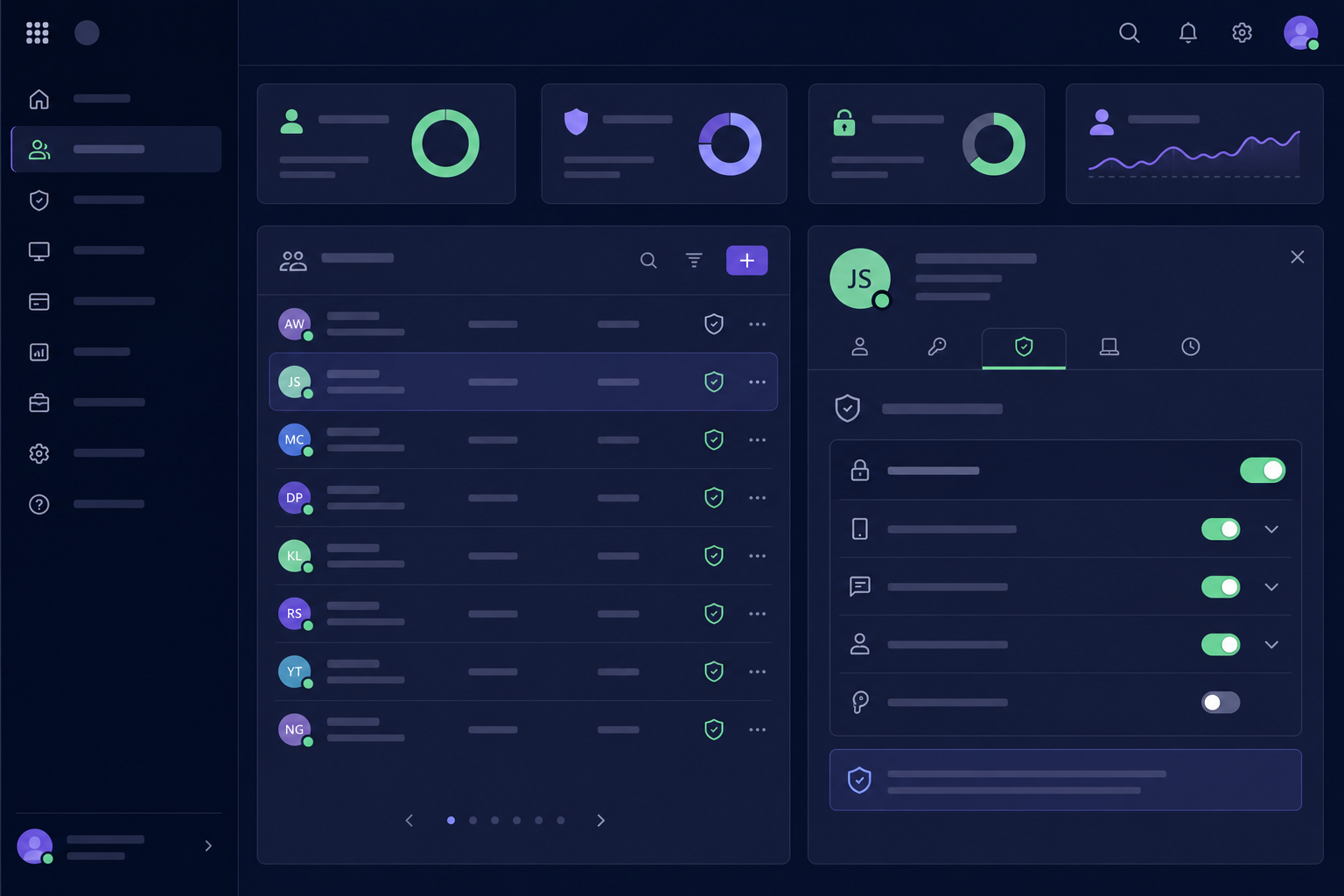
Once enabled, users will be prompted to set up their preferred method the next time they sign in to Teams. While the default is often the Microsoft Authenticator app, many organisations prefer using a Timed One-Time Password (TOTP) for better compatibility across different devices and security tools.
The Risks of Personal Device Dependency
While individual MFA works well for standard employees, it often creates significant hurdles for IT teams and MSPs. When a shared administrator account for Microsoft 365 or a client’s primary service account is protected by MFA, the secret key is frequently tied to a single engineer’s personal smartphone.
This creates a dangerous single point of failure. If that engineer is on holiday, stuck in a meeting, or leaves the company, the rest of the team may be locked out of critical infrastructure. To maintain access, some teams resort to insecurely sharing codes via group chats, which fundamentally undermines your security. To move beyond this, you must adopt a governance-first approach to identity that prioritises visibility and centralised control.
Centralising Shared MFA Access
For administrative accounts that require multi-user access, you should learn how to safely share MFA tokens rather than relying on ad hoc methods. Using a centralised MFA vault ensures that your TOTP secrets are stored in a secure, encrypted repository rather than on individual devices.
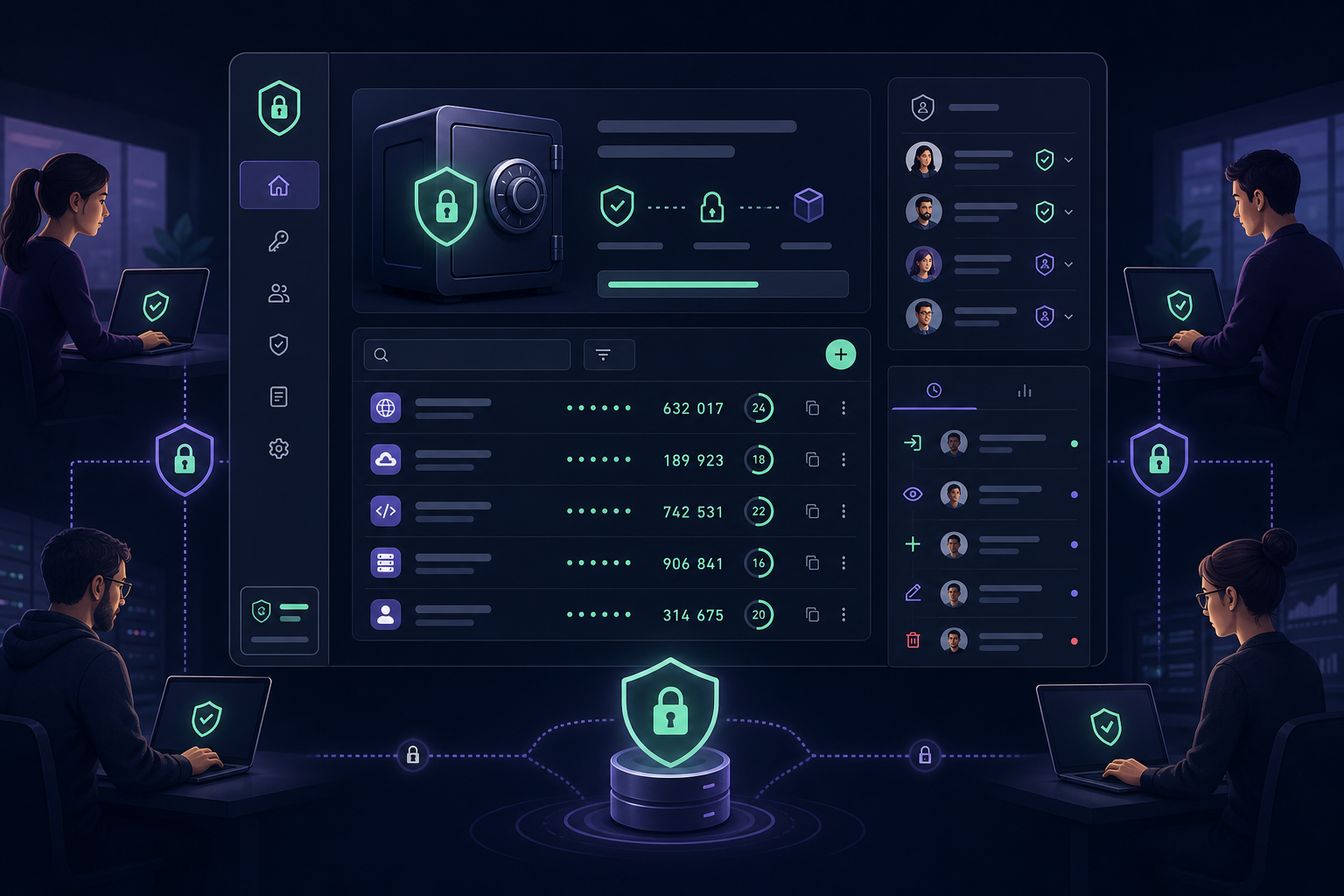
A professional shared OTP vault allows your team to:
- Eliminate bottlenecks by providing secure access to live codes for authorised members.
- Maintain detailed audit logs to see exactly who accessed a code and when.
- Revoke access instantly if a team member leaves the organisation.
- Standardise security with AES-256 encryption for all stored secrets.
When setting up these shared accounts, it is helpful to understand the technical differences between TOTP and HOTP to ensure your chosen management platform is compatible with the services you use.
Implementing MFA for Microsoft Teams is the most effective way to prevent account takeovers. However, for IT professionals managing high-risk accounts, the "one phone, one user" model is a liability. By centralising your organisation's authentication secrets, you maintain high security without sacrificing operational agility.
Stop relying on personal phones and fragmented group chats to manage your organisation's access. Start your 14-day free trial with Gatera today to use a secure MFA management platform built for professional IT teams.