
A single compromised Cloudflare account grants attackers control over your DNS, SSL certificates, and web traffic. Is your team’s infrastructure protected by more than just a password? For IT administrators, establishing a robust multi-factor authentication (MFA) strategy is the only way to prevent catastrophic unauthorised access.
How to Enable MFA for Your Cloudflare Profile
Cloudflare supports several authentication methods to secure user logins, including hardware security keys (WebAuthn), mobile app authentication, and email-based codes. To begin the setup, you should navigate to the Authentication tab within your Cloudflare profile. From here, you can add your preferred one-time password method to ensure your login requires a dynamic second factor.
- Log in to the Cloudflare dashboard and go to My Profile.
- Select the Authentication tab from the sidebar.
- Click Set up or Add next to the desired factor in the Two-Factor Authentication section.
- For TOTP-based authentication, scan the displayed QR code with your chosen authenticator app.
- Verify the setup by entering the current six-digit code and your account password.
- Download and store the provided recovery codes in a secure, centralised location.
These recovery codes are your only lifeline if you lose access to your primary MFA device. Without them, you may be subject to a lengthy manual verification process that can take several days to resolve.
Enforcing MFA for All Account Members
Securing individual profiles is only the first step. Administrators must mandate MFA for every user with access to the account to prevent weak links in your cloud infrastructure security. You can achieve this by visiting the Manage Account section, selecting Members, and enabling the Member 2FA enforcement toggle.
Once this policy is active, any invited member must configure MFA on their own profile before they are permitted to perform administrative actions. This level of enforcement is a vital component for maintaining MFA compliance for IT teams under frameworks like SOC 2 or PCI DSS v4.0, which require documented evidence of access controls.
Configuring MFA in Cloudflare Zero Trust
For organisations utilising Cloudflare Zero Trust to protect internal applications, you can enforce authentication requirements at the policy level. This ensures that users satisfy a specific MFA challenge before accessing sensitive internal tools, even if they are already logged into their primary identity provider (IdP).
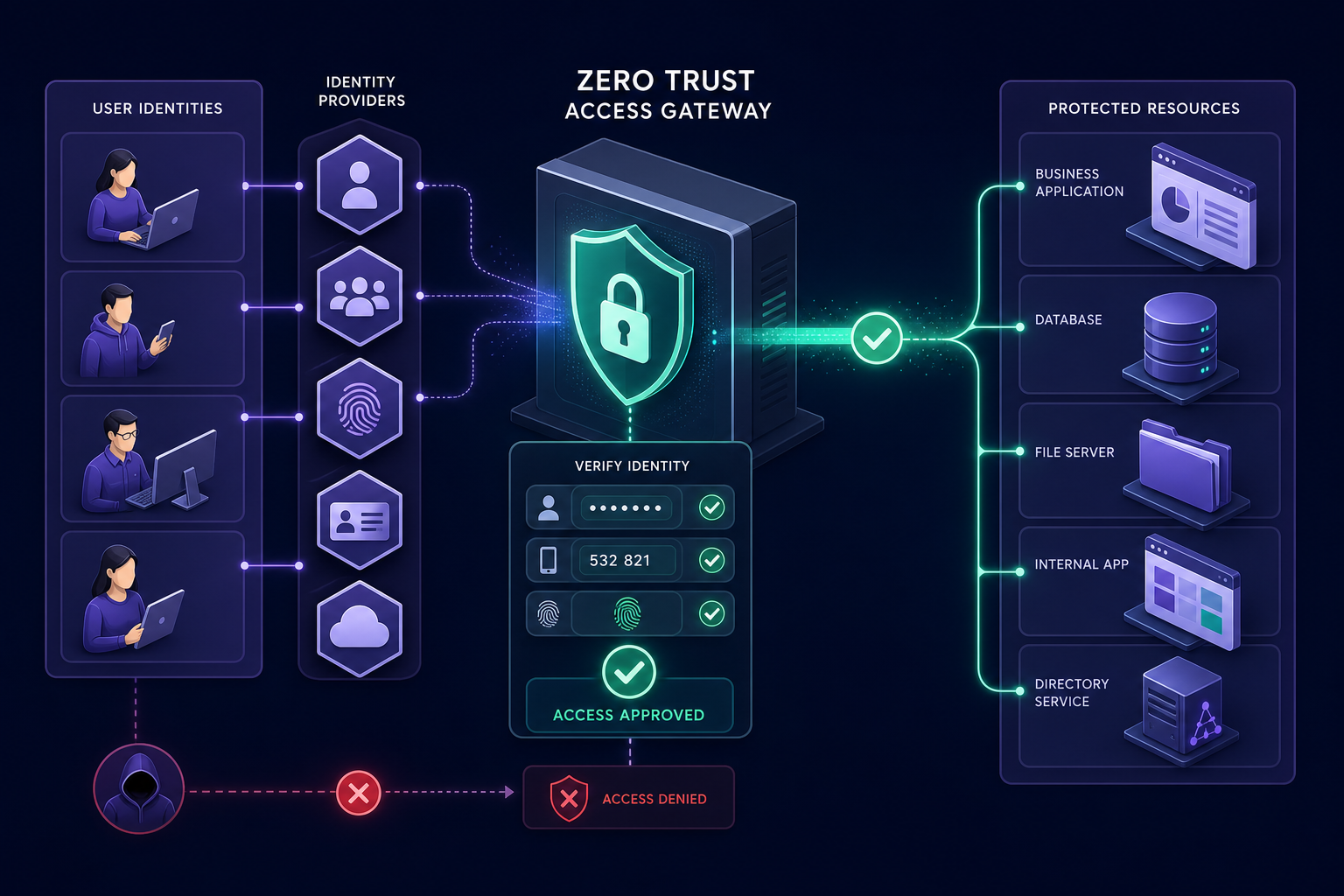
- Define policy enforcement by adding a Require rule with an Authentication Method selector within the Zero Trust application settings.
- Integrate external identity providers like Microsoft 365, Okta, or Google Workspace under the Authentication settings to centralise user management.
- Utilise shared OTP functionality for approved email addresses when users need access but do not have a formal IdP account.
These policies allow you to set custom MFA durations or even disable MFA for specific low-risk applications, giving you granular control over the balance between security and user friction.
Secure Management of Shared Admin MFA
Managed Service Providers (MSPs) and large IT teams often struggle with shared administrative accounts. Relying on a single technician's mobile device to generate codes creates a bottleneck and an immense offboarding risk if that employee leaves the company.
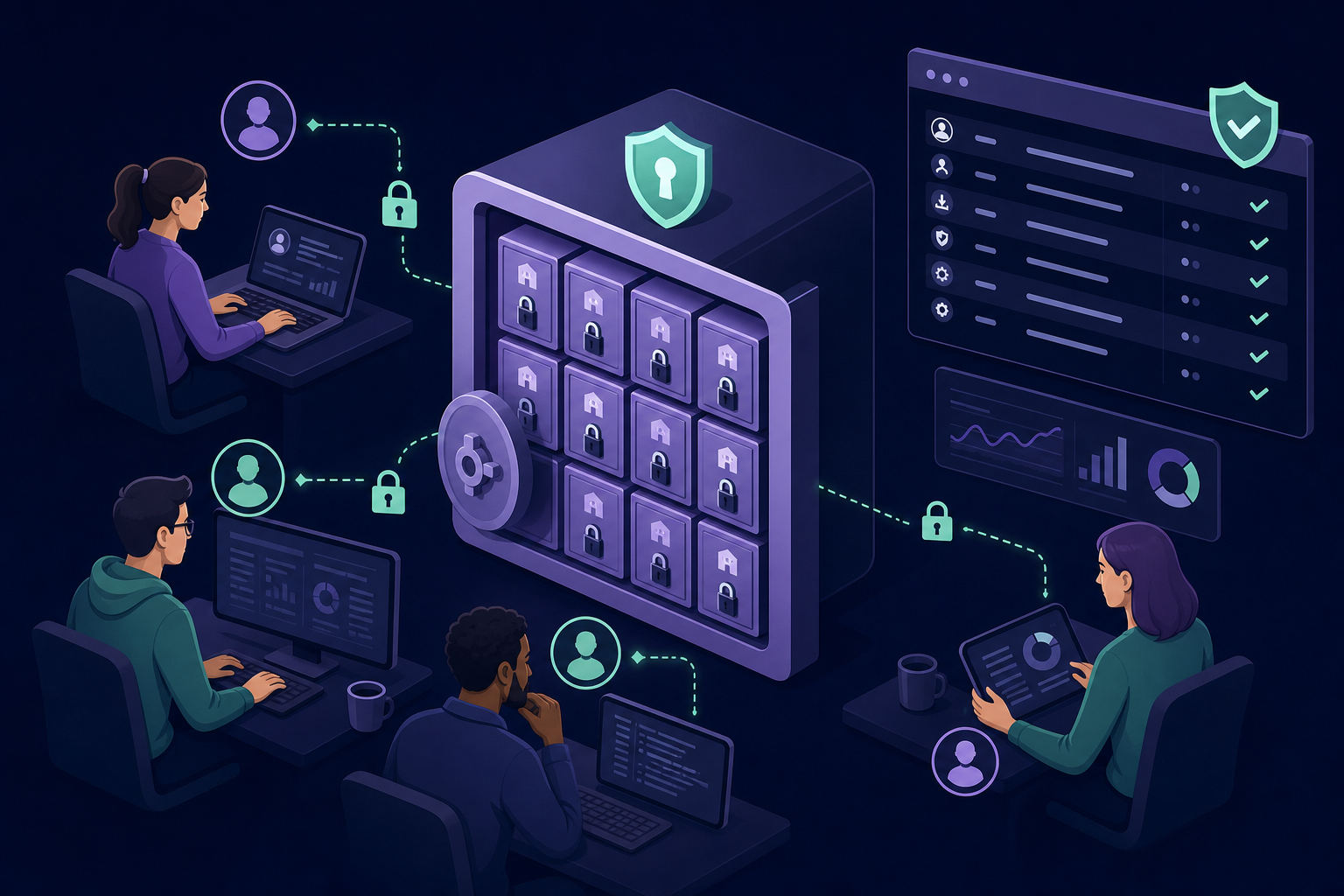
A more secure and scalable approach involves using a shared OTP vault to centralise secrets. By utilising MSP MFA management tools, you can isolate client secrets into separate vaults and maintain a clear audit trail of who accessed which code and when. This ensures that authentication secrets are never tied to personal devices and can be revoked instantly if a team member's role changes.
Recovery and Audit Procedures
Visibility is essential for effective security management. You should regularly review the Audit Logs found in the Cloudflare dashboard to monitor user-initiated actions, login events, and changes to authentication settings. Maintaining audit-ready logs allows you to demonstrate control over privileged access during security reviews and internal investigations.
If a team member loses their MFA device, they must use a backup code or initiate the Cloudflare account recovery flow. This process typically involves a 3–5 day manual review period that cannot be expedited. To avoid this downtime, ensure your team has a standardised process for storing backup seeds in an encrypted, team-accessible environment.
Protecting your Cloudflare environment requires moving beyond ad-hoc security measures toward a centralised, team-based strategy. By enforcing account-wide MFA and utilising tools like Gatera for teams, you ensure that authentication secrets remain secure, accessible, and fully auditable. Start securing your infrastructure by signing up for a 14-day free trial today.