
Is your organisation one leaked password away from a total compromise? Relying on passwords alone is a gamble that rarely pays off against sophisticated phishing. In Google Workspace, multi-factor authentication is your primary defence against credential-based attacks.
While MFA vs 2FA are terms often used interchangeably, the objective remains the same: ensuring that a stolen password is not sufficient to grant access to your sensitive data.
The Strategic MFA Rollout
Enforcing 2-Step Verification (2SV) across an entire organisation overnight often leads to a flood of support tickets and locked accounts. You should adopt a phased approach to ensure security without disrupting productivity.
- Notify your users by explaining what 2-Step Verification is, why you are implementing it, and the specific deadline for compliance.
- Allow enrolment by enabling the setting that permits users to turn on 2SV voluntarily before it becomes mandatory.
- Monitor progress using the User Reports section in the Google Admin console to track which users have successfully enrolled.
- Enforce the policy only once the majority of your team has registered their factors, switching the setting from optional to enforced.
Configuring 2-Step Verification in the Admin Console
To begin the technical configuration, navigate to Menu > Security > Authentication > 2-step verification in your Google Admin console. This menu allows you to define how and when users must provide a second factor.
Defining the Scope
You do not have to apply a single policy to everyone at once. You can apply different rules to different sets of users to better manage risk. For example, you might choose to enforce stricter types of two-factor authentication for your IT department than for general staff. Use Organisational Units (OUs) or Configuration Groups to apply these settings granularly across the business.
Selecting Allowed Methods
Google supports several verification methods, but they offer varying levels of protection. You should choose methods that align with your risk profile:

- Security Keys and Passkeys provide the highest level of phishing protection and are recommended for high-value targets.
- Google Prompt offers a simple notification on a mobile device, though it requires a data connection.
- Google Authenticator (TOTP) generates a six-digit code locally on a device. This is ideal for technical teams, provided you use a centralised MFA vault rather than individual personal phones.
- SMS and Voice codes are vulnerable to SIM swapping and interception; you should generally restrict these for accounts with elevated privileges.
Enforcement and Avoiding Lockouts
When you are ready to mandate the policy, change the Enforcement setting to On. If you prefer a delayed start, use the On From option to set a specific future date. This gives your team a clear target to hit before access is restricted.
To prevent new employees from being immediately locked out on their first day, utilise the New user enrolment period. This setting, which can range from one day to six months, provides new hires with a window of time to set up their second factor before the enforcement policy applies to them.
For existing users who have not yet enrolled, you can place them in an "Exempt from 2-Step Verification" group. Once they have successfully registered a method, move them back into the enforced OU. If a user does get locked out, you can generate backup verification codes through the user’s security settings in the Admin console to restore their access quickly.
Securing Shared Admin Accounts
Google is gradually making 2SV mandatory for all administrator accounts to combat rising identity-based threats. For these high-value targets, zero trust MFA principles are essential, ensuring that identity is verified at every access point.
A common challenge for IT teams is managing MFA for shared administrative logins or service accounts. When an MFA secret is tied to a single person’s smartphone, it creates a single point of failure and a significant offboarding risk.
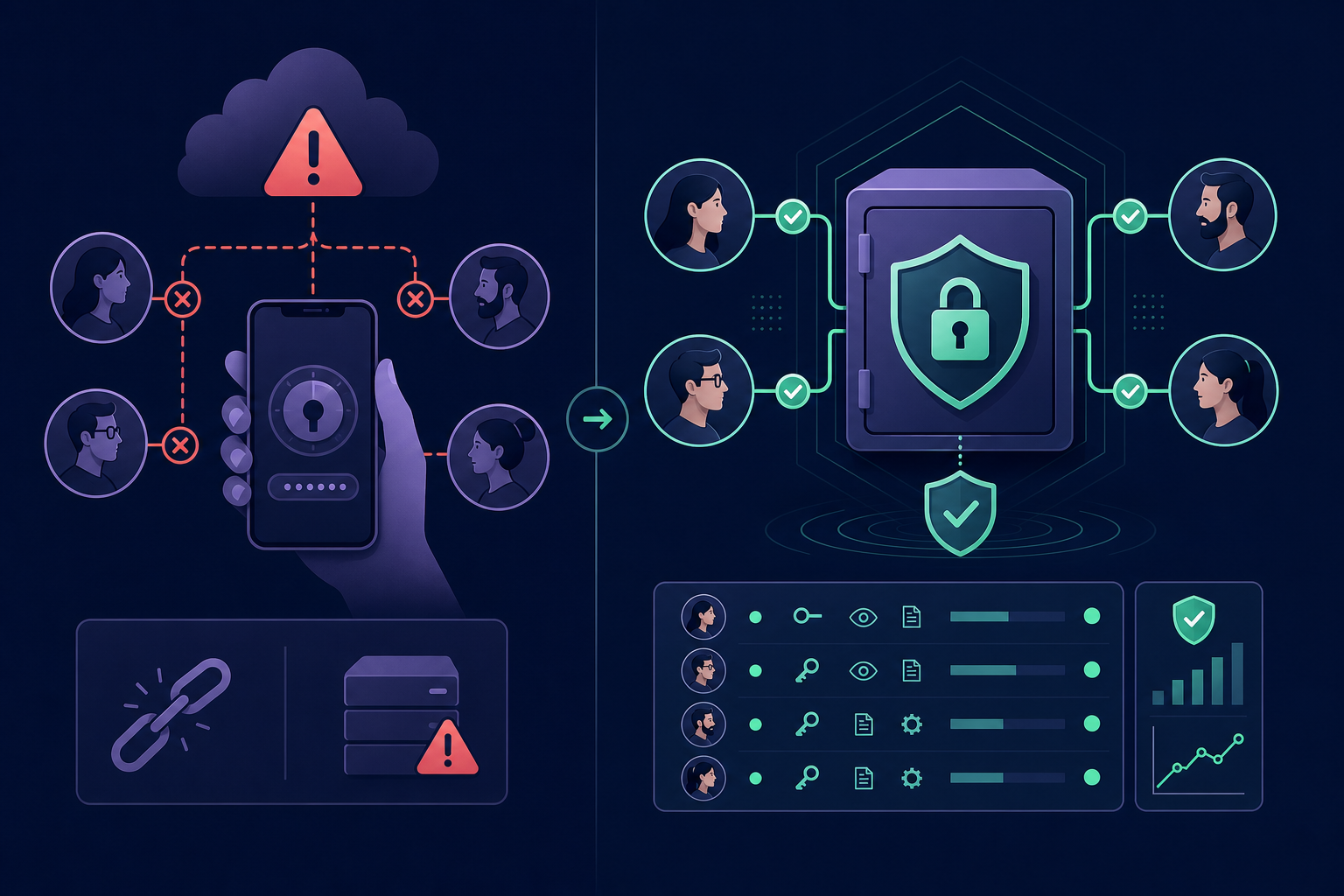
By moving these secrets into MFA for teams software, you ensure that authorised personnel have access to shared OTP codes without compromising security. This approach provides a clear audit trail of who accessed the code and when, which is vital for maintaining MFA compliance for IT teams.
Best Practices for Super Administrators
- Use dedicated accounts for administrative tasks that are distinct from your daily email and calendar accounts.
- Enrol multiple security keys for admin accounts and store at least one backup in a secure, physical location.
- Revoke legacy access by restricting App Passwords, which bypass 2SV. Use them only when absolutely necessary and delete them immediately once the requirement ends.
Implementing robust MFA enforcement is the most effective step you can take to secure your Google Workspace environment. By moving away from fragmented, device-based authentication and toward a managed strategy, you eliminate single points of failure while satisfying strict security requirements.
Ready to simplify your team's MFA workflow? Start your 14-day free trial with Gatera and take control of your shared authentication secrets today.